How to set up Kasa smart plug takes about five minutes. You need the Kasa app, a TP-Link account, and your home Wi-Fi. Plug it in, wait for the light, and follow the app. This guide covers the full steps, the Mini plug, Alexa, Google Home, and quick fixes if the plug will not connect.
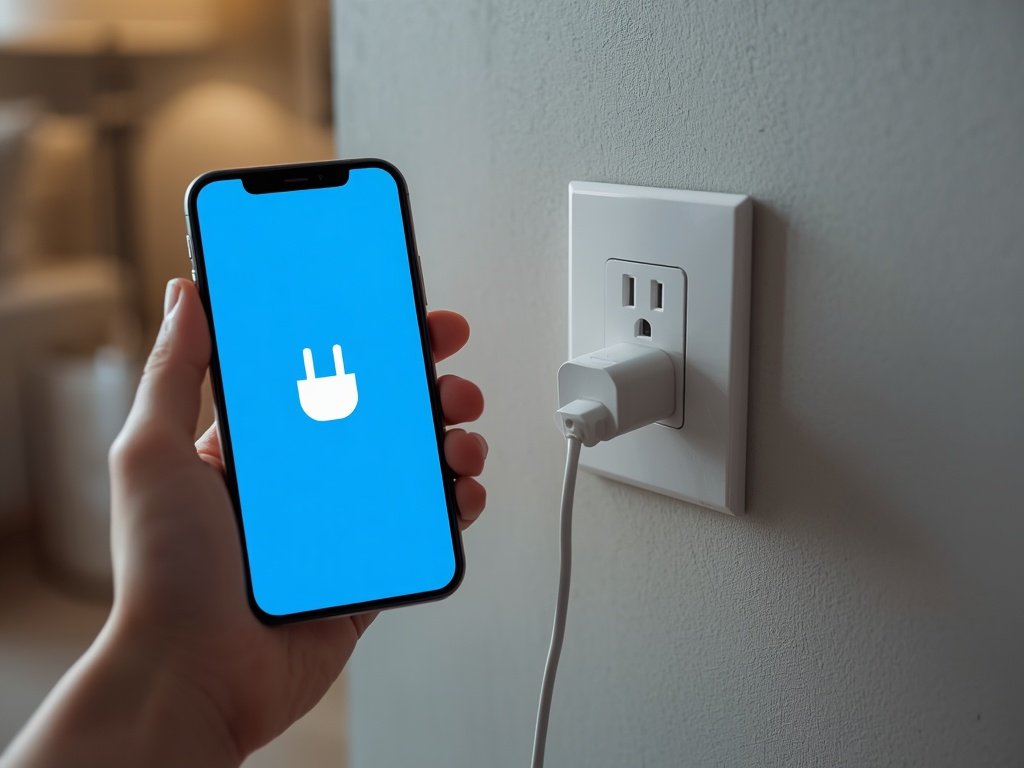
Quick answer: Install the Kasa app and sign in. Tap +, then Device, then Smart Plugs, and pick your model. Plug it in and wait for the Wi-Fi light to blink orange and green. Join the plug’s network, pick your 2.4 GHz home Wi-Fi, name the plug, and tap Save.
How to Set Up Kasa Smart Plug: What You Need First
Get these ready before you start. Most failed setups come from one missing item on this list.
- The Kasa app from the App Store or Google Play.
- A TP-Link account. You can create one inside the app.
- A 2.4 GHz Wi-Fi network. The plug does not support 5 GHz.
- Your Wi-Fi name and password.
- On iPhone with iOS 14 or newer, Local Network access turned on for the Kasa app.
- A working outlet near your router for the first setup.
No hub is needed. A Kasa Wi-Fi plug talks straight to your router. New to this? Our guide on what a smart plug is explains the basics.
How to Set Up a Kasa Smart Plug in the Kasa App
These steps follow TP-Link’s official Kasa plug setup guide. The guide uses the HS110 as its example. Your screens may look a little different.
- Open the Kasa app. Sign in with your TP-Link account, or tap Create Account.
- On the home screen, tap +, then Device.
- Tap Smart Plugs. Choose the icon that matches your model number.
- Plug the smart plug into the wall outlet and follow the on-screen steps.
- Wait for the Wi-Fi light to blink orange and green. This is setup mode.
- Connect your phone to the plug’s own Wi-Fi network. Steps differ on Android and iPhone, so see the next section.
- Pick your home Wi-Fi network from the list. If it is missing, tap Join Other Network and type the name and password.
- Name the plug. Use a clear name such as Living Room Lamp.
- Choose an icon from the app, from your photos, or take a new photo. Tap Save.
- Wait for the confirmation screen. Setup is done.
Joining the plug’s network on Android
The Kasa app looks for the plug on its own. This takes about one minute. If the search fails, open your phone’s Wi-Fi settings and join the plug’s network by hand. If your phone warns that the network is unsecured, choose to stay connected, then go back to the Kasa app.
Joining the plug’s network on iPhone
Go to Settings, then Wi-Fi. Pick the network named TP-LINK_Smart Plug_XXXX. Then return to the Kasa app. Your phone may say “No Internet Connection.” That is expected. Ignore it and carry on.
What the Wi-Fi light tells you
| Light | What it means | Your next move |
|---|---|---|
| Blinking orange and green | Setup mode | Continue in the Kasa app |
| Not blinking orange and green | The plug is not ready | Reset the plug, then start again |
Need the reset steps? Read our guide on how to reset Kasa smart plug. Hold the button 5 seconds for a soft reset or about 10 seconds for a factory reset.
After setup: the control page
Tap the plug on the home screen to open its control page. From there you can use these tools.
- Schedule, to switch the plug on and off at set times.
- Timer, to turn the plug off or on after a set time.
- Away mode, to make your home look lived in.
- Energy, on models that report power use.
Tap the gear icon to rename the plug or change its icon. The Device Info page shows the model number and firmware version.
How to Set Up Kasa Smart Plug Mini
The Mini plugs fit tight outlets. The EP10 is one example. TP-Link lists it at 15A and 1800W for general use. It uses 2.4 GHz Wi-Fi only and needs no hub. It works with Alexa, Google Assistant, and Samsung SmartThings.
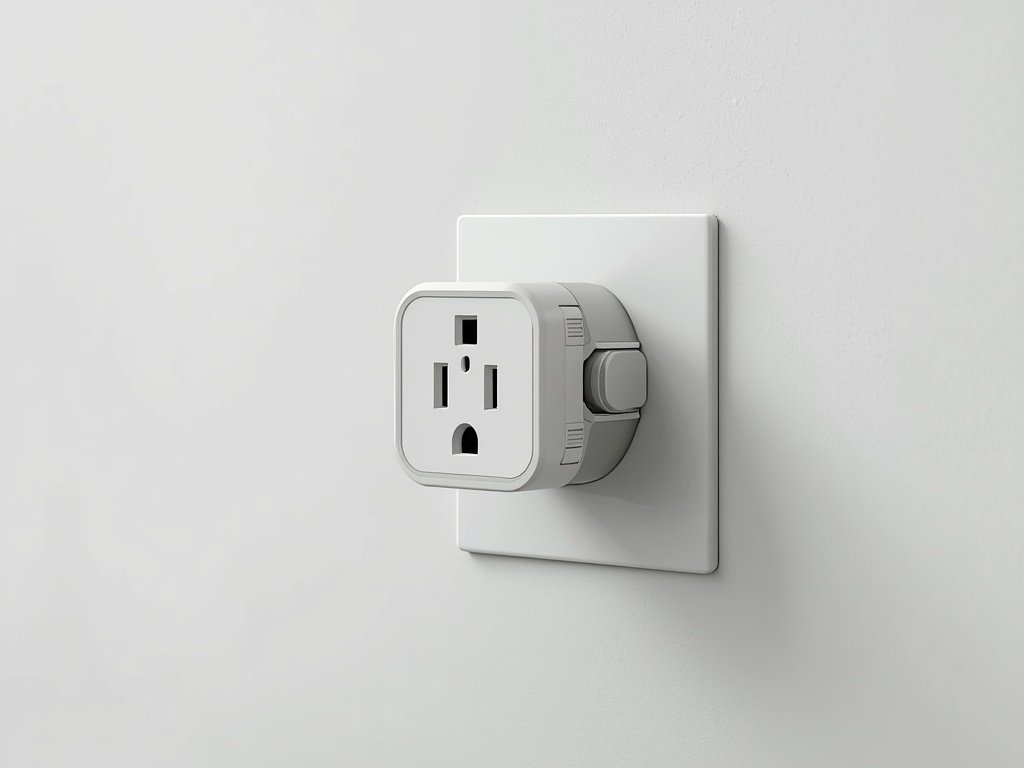
The steps match the main setup above. The one change is the icon. In the Smart Plugs list, pick the Mini icon that matches your model number. The older HS105 Mini also uses this list. Its reset light is amber and blue, not amber and green.
The EP10 datasheet adds a shortcut for Alexa users. Set up your Echo first, then plug in the Mini. If Alexa says it found a new plug, go to the Kasa app, tap +, and follow the steps. The app links your TP-Link account to Amazon along the way.
Note: TP-Link says the HS105 Mini will not support Apple HomeKit. If you want Apple Home, pick a Kasa plug that lists it, such as the KP125.
How to Set Up Kasa Smart Plug With Alexa
Set up the plug in the Kasa app first. It must be online before you link Alexa. Update the Kasa app and the plug firmware too. Then use one of these two options, taken from TP-Link’s Alexa linking guide.
Option 1: Link from the Kasa app
- Open the Kasa app and go to Me, then Third-Party Services, then Amazon Alexa.
- Follow the prompts to link your account.
- Tap the message to open the Alexa app and enable the Kasa skill.
- Alexa finds your plug on its own.
Option 2: Link from the Alexa app
- Open the Alexa app. Tap More, then Skills & Games.
- Search for Kasa.
- Tap Enable to Use.
- Sign in with your TP-Link account and approve the link.
Now try a voice command, such as “Alexa, turn on First Plug.” Use the exact name you gave the plug. If you rename the plug later, ask Alexa to discover devices again so the new name takes effect. Matter versions of Kasa plugs connect to Alexa directly and skip the skill.
How to Set Up Kasa Smart Plug With Google Home
Again, finish the Kasa setup first. Install the latest Google Home app. Then pick an option from TP-Link’s Google Home guide.
Option 1: Link from the Kasa app
- Open the Kasa app. Go to Me, then Third-Party Service, then Google Home, then Kasa Actions.
- Tap Link from Google Home app. The app switches to Google Home.
- Tap Agree & Link.
- Pick your plug and assign it to a home and room.
Option 2: Link from the Google Home app
- Open Google Home and tap Add.
- Tap Works with Google Home.
- Search for Kasa and tap TP-Link Kasa.
- Sign in to your Kasa account and tap Authorize.
- Choose your plug, then pick a home and room.
Menu names can change between app versions. If a label looks different, look for the same words. Once linked, you can switch the plug with your voice. If you rename the plug, rediscover it in Google Home. Matter-ready Kasa plugs can join Google Home directly.
What You Can and Cannot Do After Setup
What a Kasa smart plug can do
- Switch a plugged-in device on and off from the app, from anywhere.
- Run schedules and timers.
- Use Away mode while you travel.
- Take voice commands through Alexa or Google Home once linked.
- Work with no hub on a secured 2.4 GHz network.
What it cannot do
- Join a 5 GHz network.
- Control a wired ceiling light. That needs a smart switch. See smart plug vs smart switch.
- Handle a load above its rating. The EP10 tops out at 15A and 1800W.
- Skip the Kasa app. The app is required to connect the plug to Wi-Fi.
- Use the Kasa steps for every Tapo plug, which has its own app.
Kasa Smart Plug Setup Not Working? Quick Fixes
| Problem | What to try |
|---|---|
| The light will not blink orange and green | Reset the plug and try again. |
| The app cannot find the plug | Check that your phone is on 2.4 GHz Wi-Fi. On iPhone, turn on Local Network access for Kasa. |
| Your Wi-Fi is not listed | Tap Join Other Network and type the name and password. |
| Phone says No Internet Connection | This is normal while you are on the plug’s network. Return to the Kasa app. |
| Phone warns the network is unsecured | Choose to stay connected, then go back to the app. |
| The plug goes offline later | Move it closer to the router. See TP-Link’s offline troubleshooting guide. |
| Alexa or Google cannot find the plug | Update the Kasa app. Link the Kasa account, not only a Tapo account. |
Want to see the plug in a larger setup? Read best smart plugs for Home Assistant. Looking for another model? See our best smart outlet plug list.
Pros and Cons of Setting Up a Kasa Smart Plug
Pros
- Setup takes a few minutes and needs no tools.
- No hub is required.
- Schedules, timers, and Away mode are built in.
- Works with Alexa and Google Home.
- Mini models fit tight outlets.
- Resets are simple if setup goes wrong.
Cons
- Only 2.4 GHz Wi-Fi works.
- A TP-Link account and the Kasa app are required.
- Your phone must hop to the plug’s network during setup.
- Renaming a plug means you must rediscover it in Alexa or Google Home.
- Steps and lights vary a little by model.
Frequently Asked Questions
How do I set up a Kasa smart plug?
Install the Kasa app and sign in. Tap +, then Device, then Smart Plugs, and pick your model. Plug it in, wait for the orange and green light, connect to the plug’s Wi-Fi, choose your home Wi-Fi, and name the plug.
Do I need a hub for a Kasa smart plug?
No. Kasa Wi-Fi plugs work with a secured 2.4 GHz network and need no separate hub.
Does a Kasa smart plug work on 5 GHz Wi-Fi?
No. Kasa plugs work on 2.4 GHz only. Put your phone on 2.4 GHz during setup.
How do I set up a Kasa smart plug with Alexa?
Finish the Kasa setup first. Then open the Kasa app, go to Me, Third-Party Services, Amazon Alexa, and follow the prompts. You can also enable the Kasa skill in the Alexa app.
How do I set up a Kasa smart plug with Google Home?
Open Google Home, tap Add, then Works with Google Home, and search for Kasa. Sign in to your Kasa account and assign the plug to a room.
How do I set up a Kasa smart plug mini?
Use the same steps as other Kasa plugs. In the Smart Plugs list, pick the Mini icon that matches your model number. The EP10 Mini uses 2.4 GHz Wi-Fi and needs no hub.
What does the blinking orange and green light mean?
It means the plug is in setup mode and ready to connect through the Kasa app.
Why does my phone say No Internet Connection during setup?
Your phone is joined to the plug’s own network, which has no internet. This is expected. Go back to the Kasa app and continue.
What do I do if the setup fails?
Reset the plug and try again. Check that your phone is on 2.4 GHz Wi-Fi. If it still fails, contact TP-Link support.
Can I change the plug’s name later?
Yes. Tap the gear icon, then Name and Icon. If you already linked Alexa or Google Home, rediscover the plug there so the new name works.
Final Verdict: Is Kasa Plug Setup Easy?
Yes. The hardest part is the Wi-Fi hop in the middle, and the app guides you through it. Keep your phone on 2.4 GHz, watch for the orange and green light, and name the plug clearly. Link Alexa or Google Home last. If anything goes wrong, a quick reset usually clears it. Our Kasa reset guide shows how.