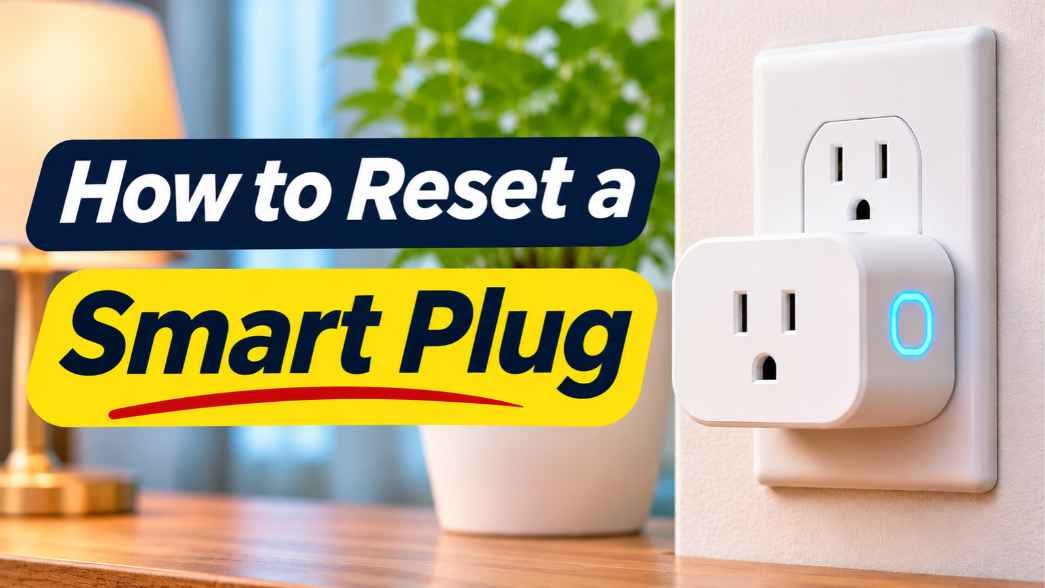
How to reset Kasa smart plug is a short job. You need one button and about ten seconds. Hold the button for 5 seconds to keep your settings. Hold it for 10 seconds to wipe everything. This guide shows both ways, the app way, the outdoor plug steps, and what to do if the plug will not respond.
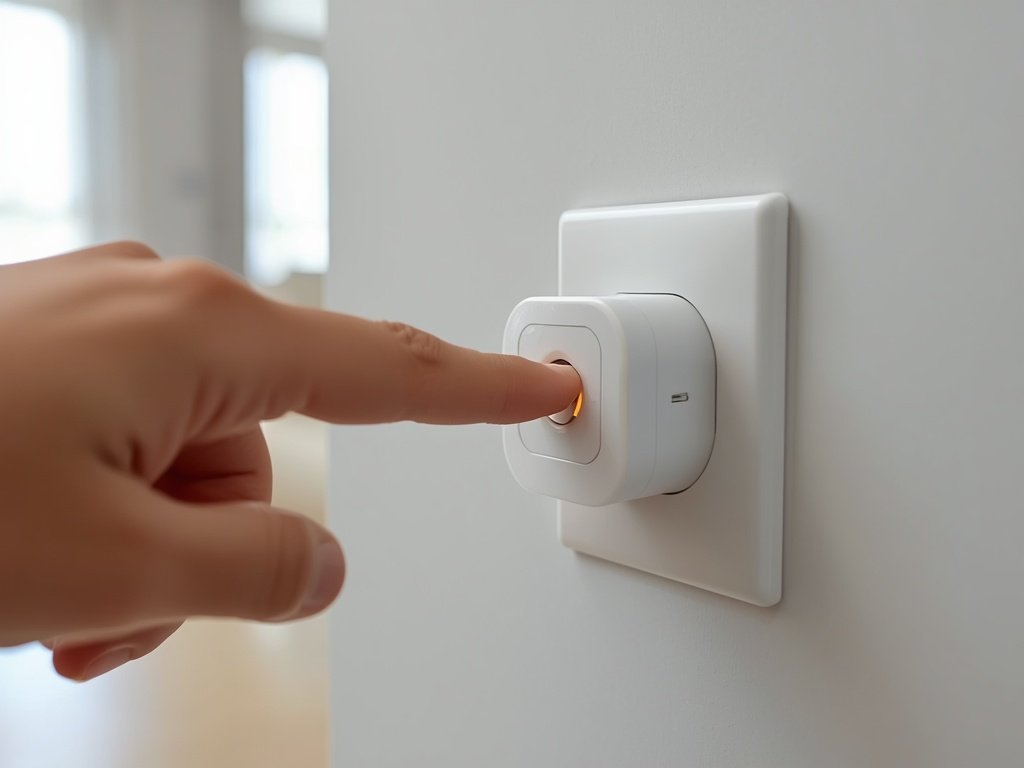
Quick answer: To reset a Kasa smart plug, press and hold its reset or power button. Hold 5 seconds for a soft reset that keeps your schedules. Hold about 10 seconds for a factory reset that erases everything. After either reset, open the Kasa app and connect the plug again.
How to Reset Kasa Smart Plug: Soft Reset vs Factory Reset
TP-Link, the maker of Kasa, gives you two kinds of reset. They look alike, but they do different things. Pick the right one first. It saves you from setting up your schedules twice.
| Reset type | Hold time | Wi-Fi light | Settings | Use it when |
|---|---|---|---|---|
| Soft reset | 5 seconds | Blinks amber and green | Kept, including schedules and automations | You changed your Wi-Fi or the plug acts odd |
| Factory reset | About 10 seconds | Blinks amber fast | Erased, including schedules and account links | Problems stay, or you pass the plug to a new owner |
Some newer plugs use a different light on a factory reset. The Kasa KP125M and EP25 blink orange and blue, according to TP-Link’s plug reset guide. The old HS105 blinks amber and blue on a soft reset.
Before You Reset a Kasa Smart Plug
A little prep makes the reset smooth. Check these points first.
- Keep the plug plugged in. TP-Link says the plug must be powered on during a reset.
- Decide between a soft and a factory reset. A soft reset is usually enough for a new Wi-Fi network.
- Have your TP-Link account email and password ready. The Kasa app asks you to sign in.
- Put your phone on your 2.4 GHz Wi-Fi network. Kasa plugs do not work on 5 GHz.
- On iPhone with iOS 14 or newer, turn on Local Network access for the Kasa app.
How to Reset a Kasa Smart Plug With the Button
The button method works even when the plug is offline. It needs no phone and no app. Kasa plugs with a power button use that button. Other models have a small reset button.
Soft reset steps
- Make sure the plug is plugged into a working outlet.
- Press and hold the reset or power button for 5 seconds.
- Watch the Wi-Fi light. Let go when it blinks amber and green.
- Open the Kasa app and follow the steps to join your Wi-Fi again.
Your schedules and automations stay in place. The plug is now in setup mode and waits for the app.
Factory reset steps
- Check that the plug has power.
- Press and hold the reset or power button for about 10 seconds.
- Let go when the Wi-Fi light blinks amber fast.
- Add the plug in the Kasa app as a new device.
A factory reset erases settings, schedules, and account links. You start from zero. Our how to set up Kasa smart plug guide walks you through that second step.
Where is the reset button?
The spot changes by model. Many Kasa plugs use the power button as the reset button. Others have a tiny reset button. If you cannot find it, search your model number on the TP-Link site. Open the support page and download the user guide. It shows the exact spot.
Kasa power strips such as the HS300 and KP303 work a little differently. Their control button is also the reset button. Hold it for 5 seconds for a soft reset or 10 seconds for a factory reset.
How to Factory Reset Kasa Smart Plug From the App
You can also factory reset a plug by removing it in the Kasa app. This only works when the plug is online. Pick one of two paths.
Option A: From the Home page
- Open the Kasa app.
- Long-tap the plug’s card on the Home page.
- Tap the minus icon on the card.
- Confirm the removal.
Option B: From Device Settings
- Tap the plug’s card on the Home page.
- Tap the gear icon in the top right corner.
- Scroll to the bottom and tap Remove.
Important: If the plug is offline, the app cannot reset it. The button is the only way then. Hold it for 10 seconds.
How to Reset Kasa Outdoor Smart Plug
The Kasa Outdoor Plug KP400 has two outlets and two control buttons. Each button switches its own outlet. Either button can also reset the plug. These steps come from the KP400 user guide.
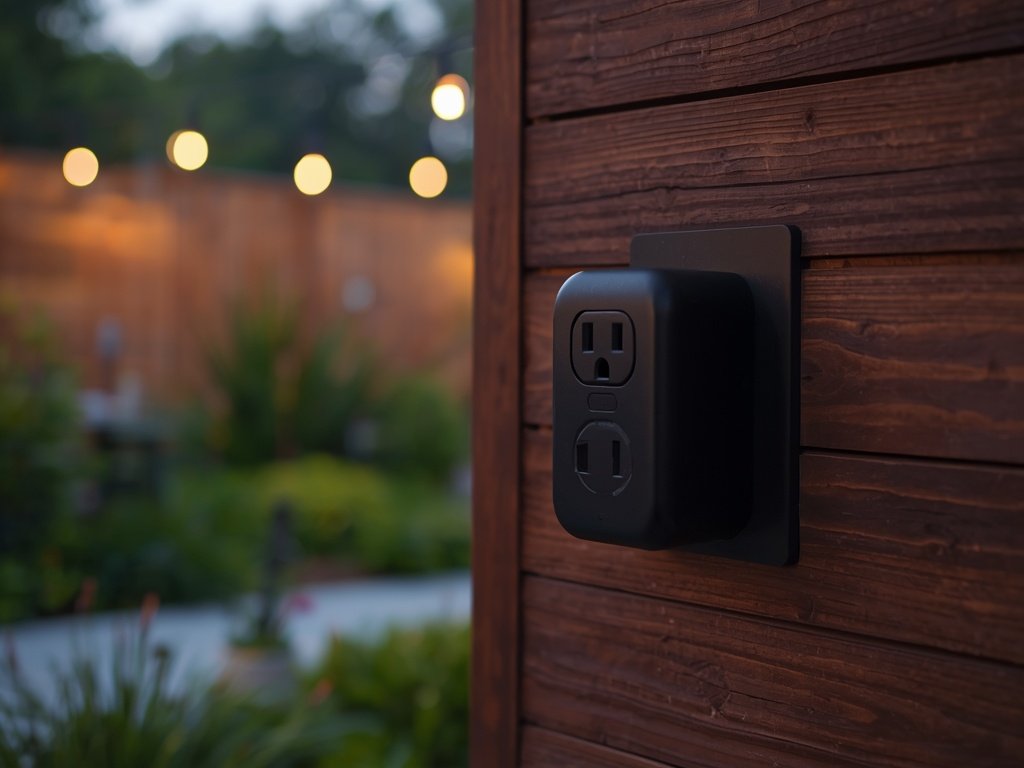
- Keep the plug powered on.
- Press and hold either control button.
- Hold for 5 seconds to reset the Wi-Fi connection.
- Hold for 10 seconds to factory reset the plug.
- Watch the system light, then add the plug in the Kasa app by tapping +, then Smart Outdoor Plug.
The system light tells you what the plug is doing. Use this table to read it.
| System light | What it means |
|---|---|
| Blinking orange | The plug is resetting |
| Blinking orange and green | Setup mode has started |
| Blinking green | The plug searches for Wi-Fi |
| White | The plug is connected to Wi-Fi |
| Orange | The plug is rebooting |
| Red | The plug has no Wi-Fi connection |
The KP400 has an IP64 rating. That means it resists dust and water splashes. It ships with a weather-resistant cover, and the sockets should be capped when you do not use them. Other outdoor models may reset in another way, so check your model guide.
How to Reset Kasa Smart Plug to New WiFi
Got a new router or a new home? You do not need a factory reset. A soft reset sends the plug back to setup mode and keeps your schedules. Then you connect it to the new network.
- Join your phone to the new 2.4 GHz Wi-Fi network.
- Hold the plug’s reset or power button for 5 seconds until the light blinks amber and green.
- Open the Kasa app and sign in.
- Tap +, choose Device, then Smart Plugs, and pick the icon that matches your model.
- On iPhone, go to Settings, then Wi-Fi, and join the network named TP-LINK_Smart Plug_XXXX. On Android, the app looks for the plug on its own for about a minute.
- Back in the app, pick your new Wi-Fi network. If it is not listed, tap Join Other Network and type the name and password.
- Wait for the confirmation screen.
Your phone may show a “No Internet Connection” warning after it joins the plug’s network. That is normal. Go back to the Kasa app and carry on. The full walk-through is on TP-Link’s Kasa reset page.
What a Reset Can and Cannot Do
What a reset can do
- Move the plug to a new Wi-Fi network.
- Fix a connection problem or odd behavior. A soft reset often does this without losing settings.
- Clear a configuration error so you can set the plug up fresh.
- Wipe the plug before you give it or sell it to someone else.
- Work without the app or the internet, because the button needs neither.
What a reset cannot do
- Keep your schedules after a factory reset. They are erased.
- Make the plug join a 5 GHz network. Kasa plugs use 2.4 GHz only.
- Finish the job on its own. You still have to add the plug in the Kasa app.
- Reset a plug with no power. The plug must be plugged in and on.
- Use the app method when the plug is offline.
- Follow the same steps for every Tapo plug. TP-Link says the Tapo process may differ, so check the Tapo support page for your model.
Kasa Smart Plug Reset Not Working? Quick Fixes
| Problem | What to try |
|---|---|
| The light does not change | Keep holding the button until the light blinks. Check that the plug has power. |
| You cannot find the button | Search your model number on the TP-Link site and open its user guide. |
| The plug is not in setup mode | Do a factory reset, then try setup again. |
| The app cannot find the plug | Check that your phone is on 2.4 GHz Wi-Fi. On iPhone, turn on Local Network access for Kasa. |
| The plug keeps going offline | A reset may help. Then see TP-Link’s offline troubleshooting guide. |
| Setup keeps failing | Read TP-Link’s guide for failed Kasa configuration, or contact TP-Link support. |
New to smart plugs? Read what a smart plug is and how it works first. Want a spare? Our best smart outlet plug picks include Kasa models.
Pros and Cons of Resetting a Kasa Smart Plug
Pros
- Free and quick, about 5 to 10 seconds.
- Works from the button, even offline.
- A soft reset keeps schedules and automations.
- Fixes many connection problems.
- Lets you move to a new Wi-Fi network.
- Clears the plug for a new owner.
Cons
- A factory reset erases settings, schedules, and account links.
- You must set the plug up again.
- The button spot and light colors change by model.
- The app method needs the plug to be online.
- Some Tapo plugs follow different steps.
Frequently Asked Questions
How do I reset a Kasa smart plug without the app?
Press and hold the reset or power button on the plug. Hold 5 seconds for a soft reset. Hold about 10 seconds for a factory reset. The button works even when the plug is offline.
How long do I hold the button to reset a Kasa smart plug?
Hold it 5 seconds for a soft reset, until the light blinks amber and green. Hold it about 10 seconds for a factory reset, until the light blinks amber fast.
How do I factory reset a Kasa smart plug?
Hold the button for about 10 seconds, or remove the plug in the Kasa app while it is online. Then add it again as a new device.
How do I reset a Kasa smart plug to a new WiFi?
Do a soft reset. Then open the Kasa app and add the plug again on your new 2.4 GHz network. Your schedules and automations stay.
How do I reset a Kasa outdoor smart plug?
On the Kasa Outdoor Plug KP400, hold either control button for 5 seconds to reset the Wi-Fi connection. Hold it for 10 seconds to factory reset. Check your user guide if you own another outdoor model.
Will a reset delete my schedules?
A soft reset keeps schedules and automations. A factory reset erases settings, schedules, and account links.
What does the blinking amber and green light mean?
It means the plug is in setup mode. It is ready to join Wi-Fi through the Kasa app.
Can I reset a Kasa plug when it is offline?
Yes. Use the button on the plug. The app method needs the plug to be online.
Do I need to set up the plug again after a reset?
Yes. After a soft reset, you reconnect the plug to Wi-Fi in the app. After a factory reset, you add it as a new device.
Is the reset the same for Tapo plugs?
It can differ. TP-Link says its Kasa guide covers Kasa devices only, so check the Tapo support page for your model.
Final Verdict: Which Reset Should You Use?
Use a soft reset when only your Wi-Fi changed. Use a factory reset when problems stay or when the plug changes hands. The button works in both cases, and it works offline. Once the plug blinks amber and green, finish with our Kasa smart plug setup guide. If you are weighing a wired option for lights, see smart plug vs smart switch.