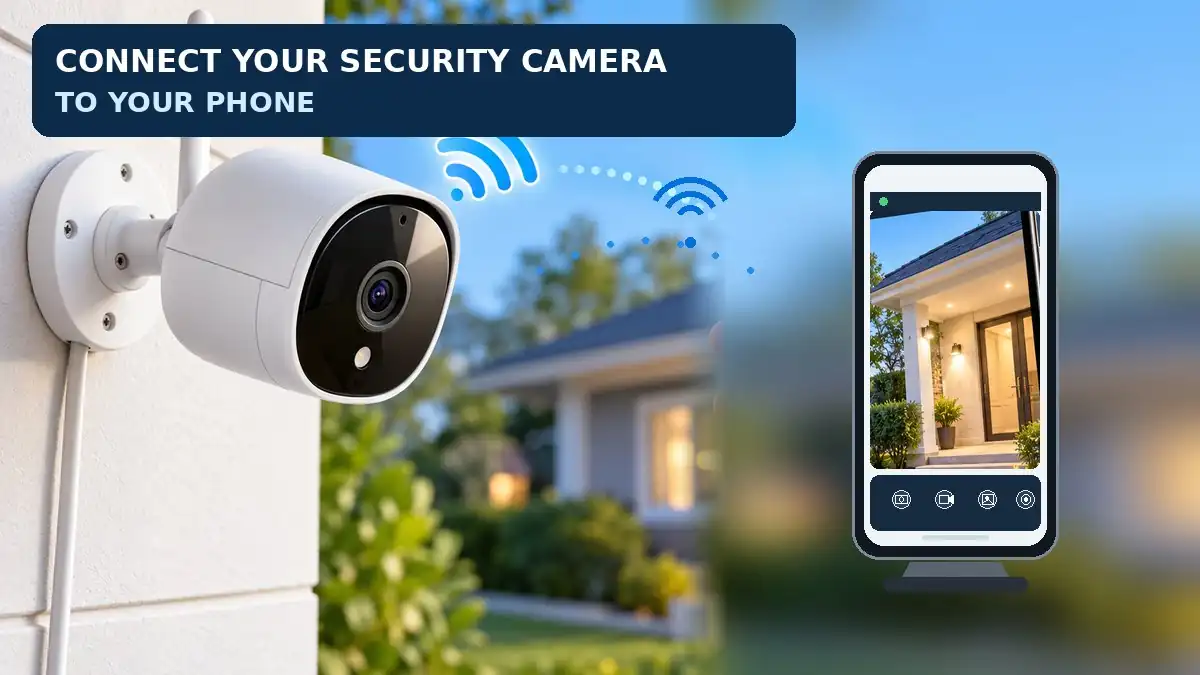
Learning how to connect security camera to phone lets you check your home or business remotely. Many people search for “how to connect security camera to phone” when setting up a new device. Most cameras use an app, while wired CCTV systems connect through a DVR or NVR. Usually, you power the camera, install the app, connect to a network, and follow its pairing steps.
This guide covers Wi-Fi, wired, and cellular cameras for Android and iPhone, plus QR pairing, alerts, and troubleshooting.
What You Need Before You Start
Gather these items before you begin:
- Camera and power: Charge the battery or use the recommended adapter. Some PoE cameras receive power through Ethernet.
- Smartphone: Update your Android phone or iPhone.
- Official camera app: Find the app through the maker’s instructions or the official app store.
- Network access: Many Wi-Fi cameras require 2.4 GHz Wi-Fi for setup. Check the manual before trying 5 GHz.
- Setup information: Keep the QR code, device ID, account details, and verification code available, but private.
Wired CCTV may need a DVR/NVR and network cable. Cellular models may need a compatible SIM and data plan. Set up near the router, then test the camera.
Types of Security Cameras You Can Connect to a Phone
The method depends on your system; wired video can still support remote viewing through an internet-connected recorder.
| Camera type | Typical connection | What you may need |
|---|---|---|
| Wi-Fi camera | Wireless router | Official app and Wi-Fi |
| Wired CCTV camera | DVR or NVR | Recorder, router, and app |
| PoE IP camera | Ethernet to a PoE switch or NVR | Network setup and compatible app |
| Cellular camera | Mobile network | Compatible SIM, coverage, and data |
| Local-only camera | Memory card or local recorder | Local access or card reader |
Wi-Fi models are often easiest. Wired systems support multiple cameras, while cellular models work where broadband is unavailable. Check phone-access support before buying extra equipment.
How to Connect a Wi-Fi Security Camera to Your Phone
For a typical home Wi-Fi camera, use the official app. If you are wondering, “how do i connect my security camera to my phone?”, follow these steps.
- Power on the camera. Connect its adapter or install a charged battery. Wait for the setup light or prompt.
- Install the app. Use the instructions supplied with the camera to find the correct app.
- Sign in. Create an account if needed and set a unique password. Enable two-factor authentication when available.
- Choose Add Device. Select the option to add a camera.
- Connect to Wi-Fi. Choose your network, enter the password, and confirm the required Wi-Fi band.
- Pair the camera. Scan a QR code, enter a device ID, or follow another method provided by the app.
- Wait for confirmation. Keep the camera close to the router until setup finishes.
- Test live view. Open the feed and check that the video loads. Test recording or alerts if supported.
How to connect security camera to phone: quick checks
If pairing fails, recheck the password and Wi-Fi band. The app may need camera, Bluetooth, nearby-device, or local-network permission. If the camera belongs to another account, use the official sharing or transfer process.
How to Connect a Wired CCTV Camera to Your Phone
A traditional CCTV camera usually connects to a DVR, which then connects to the router. Network cameras may use an NVR or another compatible system.
- Connect the cameras to the DVR or NVR using the supplied instructions.
- If remote access requires internet, connect the recorder to the router with Ethernet.
- Open network settings on the recorder and confirm it is online.
- Install the official app for that camera system.
- Add the recorder or camera using its QR code, device ID, or linked account.
- Complete verification with the device credentials you set or received through official setup.
- Select a channel and test live view and playback.
When you ask, “how do i connect my phone to my security cameras?”, the recorder may be the key. If local viewing works but phone access fails, check network status, pairing, and remote-access settings. Avoid exposing recorder ports to the internet without a secure plan.
How to Connect a Cellular Security Camera to Your Phone
A cellular camera uses a mobile network instead of home Wi-Fi. It may suit a rural property, garage, or work site without broadband. It needs compatible coverage and often a data plan.
- Check the supported carrier and network bands.
- Activate a compatible SIM or included cellular service.
- Insert the SIM as directed, powering off the camera first if required.
- Turn it on and wait for it to register on the mobile network.
- Install the official app and sign in.
- Add the camera through QR code, device ID, or account pairing.
- Test live view and check signal strength and data use.
High-resolution streaming uses mobile data. Choose lower video quality if needed and test signal strength before installation.
How to Connect a Security Camera Using a QR Code
QR pairing helps an app identify the camera or transfer setup details. Some devices require the phone to scan a label; others display a code for the camera to scan.
- Power on the camera and open its official app.
- Tap Add Device and choose QR-code setup, if available.
- Scan the label or display the app’s code in front of the camera as instructed.
- Allow camera permission if your phone must scan the code.
- Enter Wi-Fi details if requested.
- Hold the phone at the recommended distance and wait for confirmation.
- Open live view to test the connection.
Clean the lens and phone screen, reduce glare, and raise screen brightness if needed. If scanning fails, look for a manual device-ID option. Do not post the camera’s QR code or serial number online because it may identify or register the device.
How to Connect a Security Camera to Android and iPhone
On Android and iPhone, install the supported app, sign in, add the camera, and follow its pairing instructions. Menus differ by app.
On Android
- Install the app from Google Play or follow the maker’s instructions.
- Allow relevant camera or nearby-device permissions when required for setup.
- Check Wi-Fi and battery settings if the phone leaves the setup network.
- Enable app notifications if you want alerts.
On iPhone
- Install the official app from the Apple App Store.
- Review relevant settings such as Local Network, Bluetooth, Camera, and Notifications if requested.
- Keep the phone connected to the correct Wi-Fi while pairing.
- Allow notifications to receive alerts on the lock screen.
For “how do i connect a security camera to my phone,” start with the app recommended for your exact model. Third-party apps may not support every feature. Keep the app and camera firmware updated. See our guide to how security cameras work for more background.
How to Connect a Security Camera Without Wi-Fi
Some cameras can record or show footage without Wi-Fi. No Wi-Fi, no local network, and no internet are different situations.
- Memory card: Some cameras save clips to a microSD card, which may need a card reader for playback.
- DVR/NVR: A connected monitor can show local video when the recorder is offline.
- Ethernet: An IP camera can use a wired local network rather than Wi-Fi.
- Cellular service: Some cameras use mobile data instead of home broadband.
- Direct connection: A few models create a temporary local access point; check the manual.
If a system relies on an internet account, remote viewing may stop during an outage even if local recording continues. Test playback with the internet disconnected before relying on an offline setup.
How to View Security Camera Footage From Anywhere
Remote viewing usually needs internet at both the camera or recorder and the phone, plus a supported remote-access service.
- Confirm the camera or recorder is online at the property.
- Sign in to the official app with the linked account.
- Confirm the device is added and remote viewing is enabled if that option exists.
- Turn off your home Wi-Fi briefly and test using mobile data.
- Test playback and confirm where clips are stored.
Some systems use cloud access, while others rely on recorder settings. A subscription may be required for certain features. If the feed works at home but not away, check internet access, account status, firmware, and remote-view settings. Use guest access for other viewers rather than sharing your password. For more checks, read how to tell if a security camera is on.
How to Set Up Motion Alerts and Recording
After live view works, adjust alerts and storage to suit your needs. Some settings depend on the camera, memory card, recorder, or subscription.
- Motion detection: Turn it on in the camera settings.
- Detection zones: Exclude busy streets or moving trees if the app supports zones.
- Sensitivity: Start at a moderate level and test for missed events and false alerts.
- Notifications: Enable app notifications and review schedules or event filters.
- Storage: Choose supported cloud storage, microSD, or recorder storage.
- Test: Walk through the monitored area and confirm that an alert arrives and footage is saved.
Check recording schedules, storage capacity, and overwrite rules. Review clips now and then. Alerts and recording may be separate features, so test both.
How to Connect Multiple Security Cameras to One Phone
Many apps let you add several compatible cameras to one account. People searching for “how to connect security cameras to phone” often want one app for several devices. A multi-camera DVR or NVR may also show several channels in one app.
- Set up each camera or recorder according to its instructions.
- In the official app, choose Add Device for each system.
- Give each device a clear name, such as “Front Door” or “Garage.”
- Group cameras by room if the app supports it.
- Test each live feed and alert.
- Review account-sharing limits and give each person only the access they need.
More cameras increase network traffic, storage use, and alerts. If several streams freeze at once, improve Wi-Fi coverage or view fewer feeds at the same time. Check that a recorder supports all connected cameras. Different camera systems may not share one app.
Security Camera Not Connecting to Phone? Common Fixes
Try basic checks before resetting the camera, which may erase network settings.
| Problem | What to check |
|---|---|
| Camera stays offline | Check power, signal, router internet, and status lights. |
| Wi-Fi setup fails | Confirm the required Wi-Fi band and re-enter the password. |
| QR code will not scan | Clean the lens, reduce glare, raise screen brightness, or try manual pairing. |
| App cannot find camera | Check required permissions and restart the app. |
| Video buffers | Test the Wi-Fi or mobile signal and lower quality if supported. |
| Remote view fails away from home | Check internet access, remote-view settings, and account status. |
| Motion alerts do not arrive | Check camera settings, schedules, and phone notifications. |
Try these fixes in order:
- Confirm that the camera has power and the router or recorder is online.
- Move the camera and phone closer to the router during pairing.
- Restart the camera and app as directed in the manual.
- Install app or firmware updates from official sources.
- Re-add the camera only if the app supports that process.
- Use the reset button only after checking what will be erased.
If the camera belongs to another account, ask the owner to share access or transfer ownership through the official process. Do not try to bypass a device lock.
Security Tips for Your Camera and Phone
Security cameras hold sensitive video, so protect their app accounts.
- Change default passwords and use a unique password.
- Enable two-factor authentication when available.
- Install camera and app updates from official sources.
- Use a strong Wi-Fi password and update the router.
- Share access with trusted people only, and remove users who no longer need it.
- Review where video is stored and how long it is retained.
- Follow local privacy rules and avoid recording places where people reasonably expect privacy.
- Use the maker’s secure remote-access method instead of exposing devices to the open internet unnecessarily.
If your phone is lost, change your account password from a trusted device and sign out other sessions if possible. Review account activity and remove unknown users.
Frequently Asked Questions
Can I connect any security camera to my phone?
No. The camera or recorder must support phone access, usually through a compatible app or remote-view method. Older systems may support only local playback.
Do I need Wi-Fi to connect a security camera to my phone?
Not always. Some cameras use cellular service, while others record to a card or recorder. Remote access usually needs internet at the camera or recorder and on the phone.
Why does the camera work at home but not on mobile data?
Remote access may be disabled, the camera may have lost internet, or the app may need you to sign in again. Check the camera network and remote-view settings.
Can I view multiple cameras on one phone?
Often yes, if they use the same app or a compatible DVR/NVR system. Add each device through the official app and test each feed.
Is it safe to scan a camera QR code?
Use the code supplied with your own camera in the official app. Keep it private because it may identify or register the device.
Final Thoughts
Learning how to connect security camera to phone means identifying your camera type, installing its official app, and following the right pairing steps. Save this guide so you can revisit how to connect security camera to phone when moving or resetting a camera. Wi-Fi cameras use a router, wired CCTV systems usually use a DVR or NVR, and cellular models rely on mobile service.
Test live view, recording, and alerts both at home and away. If the connection fails, check power, network settings, app permissions, and account access before resetting the device. Keep the system updated and control who can view your footage.