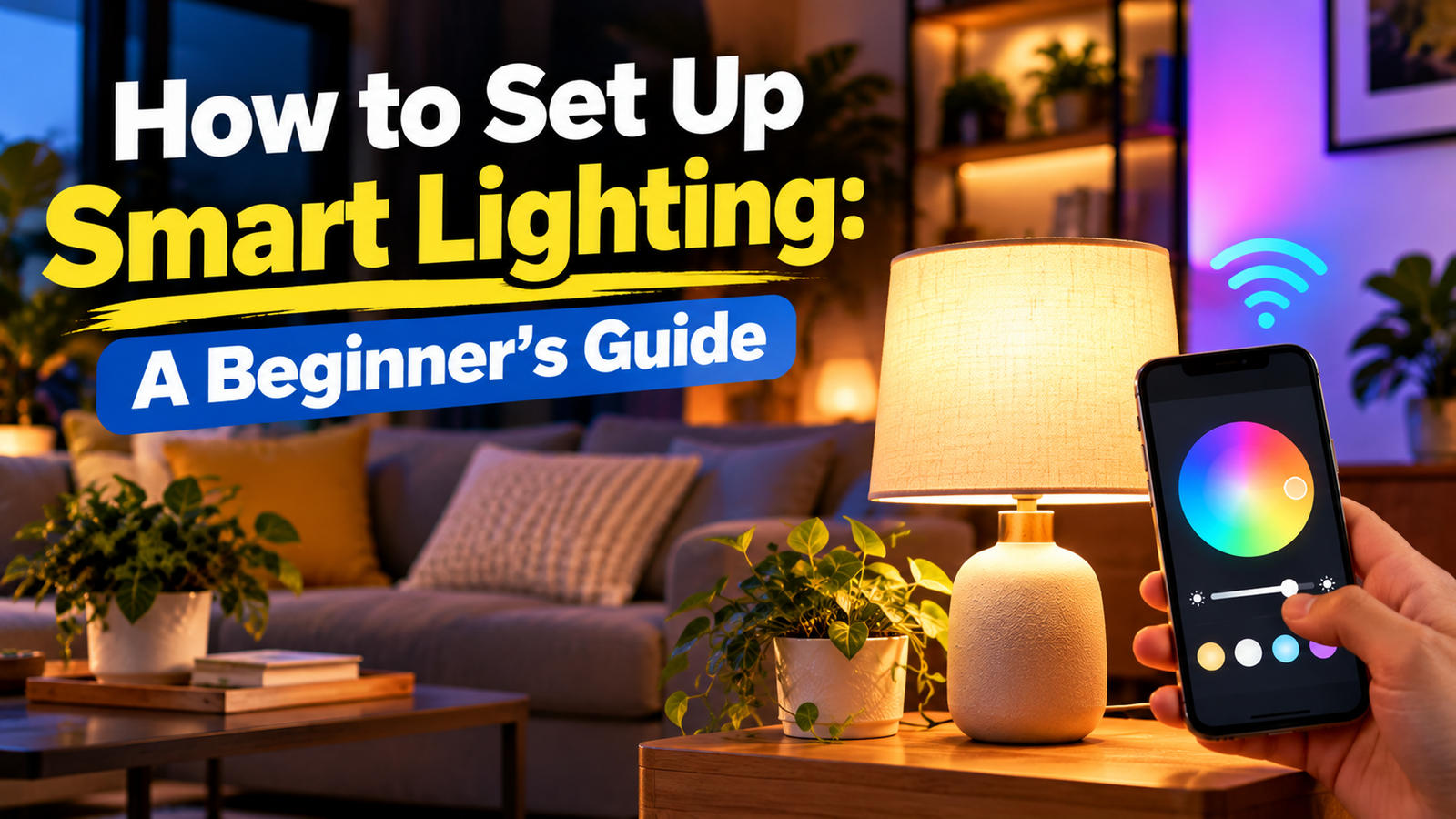
Learning how to set up smart lighting can make daily life easier. You can turn lights on with a phone, change the room’s brightness, and set lights to follow a schedule. This guide explains how to set up smart lights with simple steps so you can start with one or two compatible lights.
What Is Smart Lighting and How Does It Work?
Smart lighting lets you control compatible lights with an app, voice assistant, or schedule. Some lights connect straight to your home Wi-Fi. Others use Bluetooth, a hub, or another supported connection.
With the right setup, you can turn lights on and off, dim them, and change their color or warmth. The options depend on the light you choose, its app, and the smart home system you use.
Benefits of Smart Lighting
Smart lighting can make common tasks easier and help you set the feel of a room. Its value depends on the type of light and the features you use.
- Convenience: Control compatible lights from an app or with your voice.
- Schedules: Set lights to turn on or off at chosen times.
- Adjustable brightness: Use brighter light for tasks and softer light to relax.
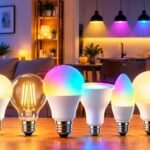
- Color choices: Some bulbs let you change color or warm and cool tones.
- Remote access: Some setups let you control lights when you are away from home.
- Possible energy savings: Scheduling lights and using efficient bulbs may reduce energy use, but savings are not automatic.
Types of Smart Lighting: Bulbs, Switches, Plugs, and Light Strips
Different smart lights solve different needs. Check the fixture, wiring, and platform requirements before you buy.
| Type | What it does | Best use | What to check |
|---|---|---|---|
| Smart bulb | Replaces a compatible bulb | Lamps and simple room upgrades | Base, size, brightness, enclosed fixture rating, and app support |
| Smart switch | Controls a wired light circuit | Ceiling lights used by several people | Wiring, neutral-wire needs, dimmer type, and electrical safety |
| Smart plug | Adds smart control to a plug-in lamp | A lamp with a regular bulb | Device power rating and whether the lamp should restart when power returns |
| Smart light strip | Adds flexible lighting along a surface | Shelves, desks, and accent lighting | Strip length, power supply, location rating, and controller compatibility |
A smart plug does not make every connected device smart in every way. It usually switches power on or off, so it may not provide dimming or color control.
What You Need Before Setting Up Smart Lighting
Gather the basics first. Exact needs differ by light model and connection type.
- A compatible smart bulb, switch, plug, or light strip.
- A lamp or fixture that matches the device’s requirements.
- A smartphone or tablet.
- The manufacturer’s app.
- A suitable home network if the device needs one. Some devices use a specific Wi-Fi band.
- A compatible hub or voice assistant, if the features you want require one.
- Your home network password, if prompted.
Read the package and setup guide before installing anything. Check whether the light works with your preferred phone and voice assistant.
How to Choose the Right Smart Lights
The best choice is one that fits your home and the way you want to use it. A simple white smart bulb may be enough for a bedside lamp, while a larger room may need more light points.
- Bulb base: Match the base and bulb size to your lamp.
- Fixture fit: Check for enclosed fixtures or special temperature limits.
- Brightness: Look at lumens, which tell you how much light a bulb gives.
- Color temperature: Warm light looks softer; cool light can feel more like daylight.
- Color options: Some bulbs change color, while others only adjust white light.
- Connection: Check if it uses Wi-Fi, Bluetooth, a hub, or another supported method.
- Voice support: Confirm that the exact model works with your chosen assistant.
- Cost and energy use: Compare the upfront price and the stated power use.
- Warranty: Read the seller’s and maker’s warranty terms.
How to Plan Your Smart Lighting Setup
A small plan helps prevent buying lights that do not fit or connect the way you expect.
- Pick a room. Start with a bedside lamp or one often-used room.
- Check the fixture. Find the bulb base, size, and any dimmer or enclosure limits.
- Set a budget. Include any hub or extra controls the system needs.
- Check compatibility. Confirm the app, network, and voice assistant support.
- Choose useful features. Decide whether you need dimming, color, schedules, or remote control.
- Start small. Test one light before buying several.
How to Set Up Smart Lighting Step by Step
If you are learning how to set up a smart light, the exact process depends on the device. These steps are common for many smart bulbs.
- Check compatibility. Make sure the light matches your fixture and home network.
- Install the light. Follow the maker’s instructions. Turn the lamp off before replacing a bulb.
- Turn on the light. Use the wall switch or lamp switch as directed.
- Install the correct app. Use the official app named in the manual or packaging.
- Start pairing mode. Follow the model’s instructions. Do not guess a reset pattern.
- Add the device. Open the app and choose its add-device option.
- Follow the prompts. The app may ask for Bluetooth, a network, or a scan of a setup code.
- Test the controls. Turn the light on and off and try brightness settings.
- Give it a clear name. Names such as “Bedside Lamp” or “Kitchen Ceiling” are easy to remember.
If the light does not appear, check its setup guide before repeating the process.
How to Connect Smart Lights to Wi-Fi or a Hub
Some lights connect directly to Wi-Fi, while others need a hub or a different supported connection. Use the method listed for your model.
- Check the manual for the connection type and network requirements.
- Open the matching smart-light app.
- Put the light or hub in pairing mode as directed.
- Follow the app’s steps and select the network if asked.
- Wait for the app to confirm that setup is complete.
- Test the light from the app before moving on.
If the device needs a hub, connect and set up the hub first. Keep the hub within the range stated by its maker.
How to Set Up Smart Lights Without a Hub
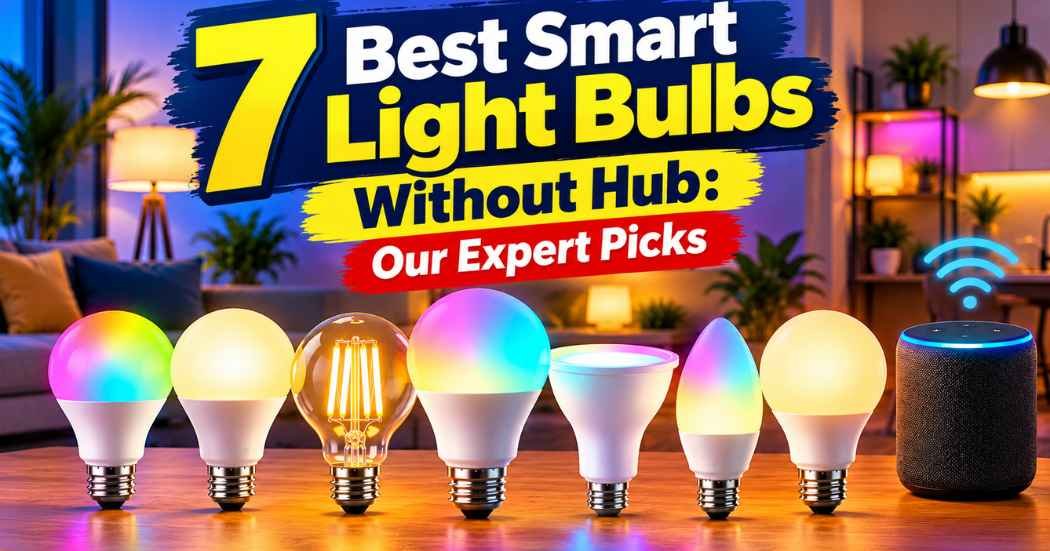
Some Wi-Fi or Bluetooth smart lights can be set up without a separate hub. For more examples, see our guide to smart light bulbs without a hub. You usually add them through their app and follow the prompts. Their features still depend on the model and how it connects.
Before buying a hub-free light, check these points:
- Does it connect directly to your phone or Wi-Fi?
- Does it need internet access for the features you want?
- Can it be controlled when you are away from home?
- Are schedules and voice controls supported without a hub?
- Does it work with your chosen smart home platform?
Bluetooth-only lights may have limited range or remote access. Read the product instructions to understand the limits.
How to Connect Smart Lights to Alexa, Google Home, or Apple Home
Voice assistants can make compatible lights easier to control. The setup steps differ, and not every light works with every platform.
How to Connect Smart Lights to Alexa
To learn how to set up a smart light bulb with alexa, first add the bulb in its own app. Then open the Alexa app and look for the option to add or discover a device. Some lights need you to enable a skill or link a service before Alexa can find them.
Follow the prompts, then try a clear command such as “Alexa, turn on the bedside lamp.” If it fails, check the light compatibility, linked account, and device name. You can also read our guide to smart light bulbs that work with Alexa.
How to Connect Smart Lights to Google Home
First set up the light with its own app if the instructions require it. In Google Home, choose the option to add a device or link the light’s service. Follow the prompts, then assign the light to the right room.
Try turning it on and off in the app. If voice control does not work, check that the service is linked to the correct account and that the names are easy to understand.
How to Connect Smart Lights to Apple Home
Use the device’s supported Apple Home setup method. Depending on the model, you may need to scan a setup code or use the maker’s app first. Follow the on-screen steps and place the light in a room.
Check the package or manual for Apple Home support and any required home hub or network setup. Do not assume that a light works with Apple Home just because it works with another assistant.
How to Control Smart Lights With Your Phone
The app is often the main way to control smart lights. Open it and select your light or room to see the options available to your model.
- Turn a light on or off.
- Adjust brightness.
- Change color or white-light warmth if supported.
- Choose a saved scene.
- Check the connection status.
- Use remote control when the device and service support it.
Keep the app updated and use a clear name for each light. This makes it easier to control the right one.
How to Create Rooms and Lighting Groups
Rooms and groups help you control several compatible lights at once. Names also make voice commands less confusing.
- Open the app used to control your lights.
- Give each light a useful name.
- Create or choose a room, such as “Living Room.”
- Assign each matching light to that room.
- If supported, create a group for lights you want to control together.
- Test the group before adding it to a schedule or routine.
The names and menu options vary by app. Some platforms also let you group lights from different makers if they are supported by the same system.
How to Set Up Smart Lighting Schedules and Automations
Schedules and automations let compatible lights act at a time or when a set event occurs. Available options vary by device, app, and home network.
- Open the app that controls your light or room.
- Find its schedule, routine, or automation menu.
- Choose an action, such as turning on, dimming, or turning off.
- Set the time or trigger. Some apps support sunset or sunrise.
- Choose the light or group and save the routine.
- Test it and adjust the time if needed.
Simple ideas include turning on a porch light at sunset, dimming bedroom lights at bedtime, turning off a hallway light late at night, or setting a gentle morning routine. Check how your app handles power loss, internet outages, and daylight-saving time.
How to Create Lighting Scenes for Different Moods
A scene saves a group of light settings for a task or mood. It can save time when you use the same lighting again and again.
- Reading: Use a bright, comfortable light that lets you see the page.
- Relaxing: Try a softer brightness and warm white light.
- Watching movies: Dim nearby lights to reduce glare on the screen.
- Cooking: Use clear, bright light over food-prep areas.
- Entertaining: Combine comfortable room lighting with accent lights if available.
Color temperature affects how warm or cool white light looks. Pick settings that feel good to you and still let you see clearly.
How to Use Motion Sensors and Smart Controls
Compatible motion sensors and wireless buttons can control lights without opening an app. Make sure the sensor or button works with your lighting system before setting it up.
- Use a motion sensor to turn on a hallway light when someone walks past.
- Set an entryway light to turn on when movement is detected, if supported.
- Place a wireless button where guests can easily reach it.
- Use a sensor with suitable range and location ratings.
- Adjust the trigger and off-delay settings to avoid lights turning off too soon.
Sensors may need a hub or a particular connection. Follow the maker’s instructions for pairing and placement.
How to Set Up Smart Lighting for Different Rooms
Choose lighting that suits the activity and the fixture in each room. Check safety ratings before placing lights in damp or outdoor areas.
- Living room: Use dimmable bulbs or groups to shift from bright tasks to quiet evenings.
- Bedroom: Try a smart bulb in a bedside lamp and set a bedtime schedule.
- Kitchen: Use clear light over work areas and confirm that strips or fixtures suit the location.
- Bathroom: Use fixtures rated for the location and moisture level. Keep devices away from water unless they are designed for that use.
- Hallway and stairs: Motion-based lighting can help people see at night. Avoid settings that leave steps dark when someone is using them.
- Home office: Use comfortable, even light and reduce glare on screens.
- Outdoor areas: Choose lights rated for outdoor use and follow the installation rules. Do not use indoor-only devices outside.
Smart Lighting Troubleshooting Tips
If a light does not work as expected, check the simple causes first. Always use the maker’s instructions for pairing, reset, and electrical steps.
| Problem | Possible Cause | What to Try |
|---|---|---|
| Light will not connect | Network or pairing issue | Check the network and follow the app instructions |
| Light appears offline | Power or connection issue | Check the wall switch, lamp power, and connection |
| App cannot find the bulb | Pairing mode is not active | Follow the maker’s pairing steps |
| Voice commands fail | Compatibility or account issue | Check the linked service and device name |
| Light responds slowly | Network or service delay | Check the connection and try again |
| Light turns off unexpectedly | Schedule or automation | Review routines and timers in the app |
| Bulb flickers or will not dim | Incompatible dimmer or fixture | Check the bulb’s requirements and dimmer compatibility |
| Several lights fail at once | Router, hub, or service issue | Check the network and service status |
Do not try random reset patterns. Some devices use different steps, and a reset may remove saved settings.
Smart Lighting Safety and Maintenance Tips
Follow the product instructions to keep your setup safe and reliable.
- Check bulb type, base, wattage limits, and fixture rules before installation.
- Use lights rated for the intended indoor, damp, wet, or outdoor location.
- Turn off the lamp or fixture before changing a bulb.
- Do not use a smart bulb with an incompatible dimmer switch.
- Keep the app and device firmware updated when updates are offered.
- Do not touch wiring or change a wired switch unless you have the right training.
- Ask a qualified electrician to do wiring work you are not trained to perform.
- Keep lights and power supplies away from water unless they are rated for that setting.
Best Smart Lighting Ideas for Beginners
You do not need to automate the whole home at once. Start with one small task and add more only when it is useful.
- One bedside smart bulb: Try app control and dimming in a single lamp.
- A living room group: Add compatible lights to one room and control them together.
- A sunset schedule: Set an outdoor-rated light to turn on at sunset if the app supports it.
- Voice-controlled lights: Link a compatible bulb to your chosen assistant.
- A motion-activated hallway light: Use a compatible sensor and test the timing so it is safe to walk through.
These simple ideas help you learn the app and find out which features matter to your home.
Frequently Asked Questions About Smart Lighting
Is smart lighting difficult to set up?
Many smart bulbs are designed for simple setup, but the exact steps vary. Check compatibility, install the app, and follow the device’s pairing guide.
Can I set up smart lights without a hub?
Yes, some Wi-Fi or Bluetooth lights work without a separate hub. Check the model’s requirements because remote access and automation features can differ.
How do I set up a smart light bulb?
To learn how to set up a smart light bulb, check the bulb base and fixture first. Turn off the lamp before fitting it, then open the correct app, follow the pairing steps, and test the controls.
How do I set up a smart light bulb with Alexa?
Set up the bulb in its own app first if required. Then add or discover it in the Alexa app, link a required service if prompted, and test a voice command.
Do smart lights need Wi-Fi?
Not all smart lights need Wi-Fi. Some use Bluetooth or a hub-based connection, while other features may still require internet access.
Can smart lights work with a normal light switch?
Often, yes, but switching off the power may make a smart bulb unavailable to the app until power returns. Follow the maker’s instructions for the best way to use a wall switch.
Can I control smart lights when I am away from home?
Some lights allow remote control through an internet-connected app or hub. Others only work nearby. Check the device’s listed features and setup needs.
Do smart lights use electricity when switched off?
A smart light may use a small amount of standby power while it remains connected and ready to respond. The amount depends on the device.
Can I use smart bulbs in any lamp?
No. Check the bulb base, size, wattage, fixture type, heat limits, and dimmer compatibility. Some fixtures are not suitable for a particular smart bulb.
Are smart light bulbs worth the cost?
They may be worth it if you use app control, schedules, dimming, or voice commands. Start with one bulb and decide whether its features are useful before buying more.
Final Thoughts: Is Smart Lighting Worth Setting Up?
Smart lighting can make it easier to control brightness, build routines, and adjust the feel of a room. Before you buy, check the bulb or fixture, connection type, app, and voice assistant support.
The easiest way to learn how to set up smart lighting is to begin with one or two compatible lights. Once they work well, you can add rooms, schedules, scenes, and sensors at your own pace.