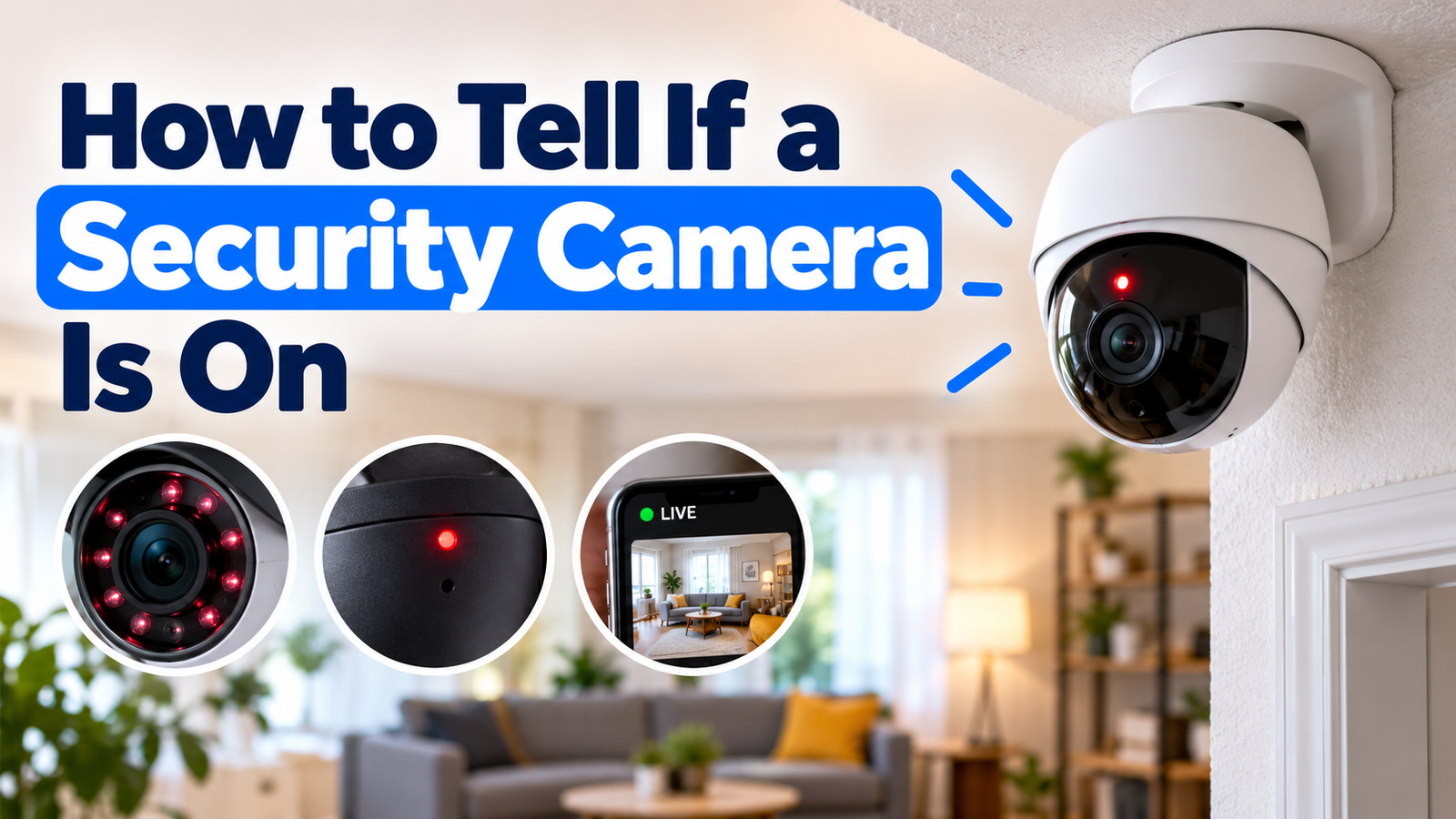
How to tell if a security camera is on can be confusing because lights, sounds, and movement do not always show what a camera is doing. The most reliable approach is to check the camera’s official app, power status, connection, and available recordings. This guide explains how cameras work, what their signs can mean, and how to protect your privacy safely.
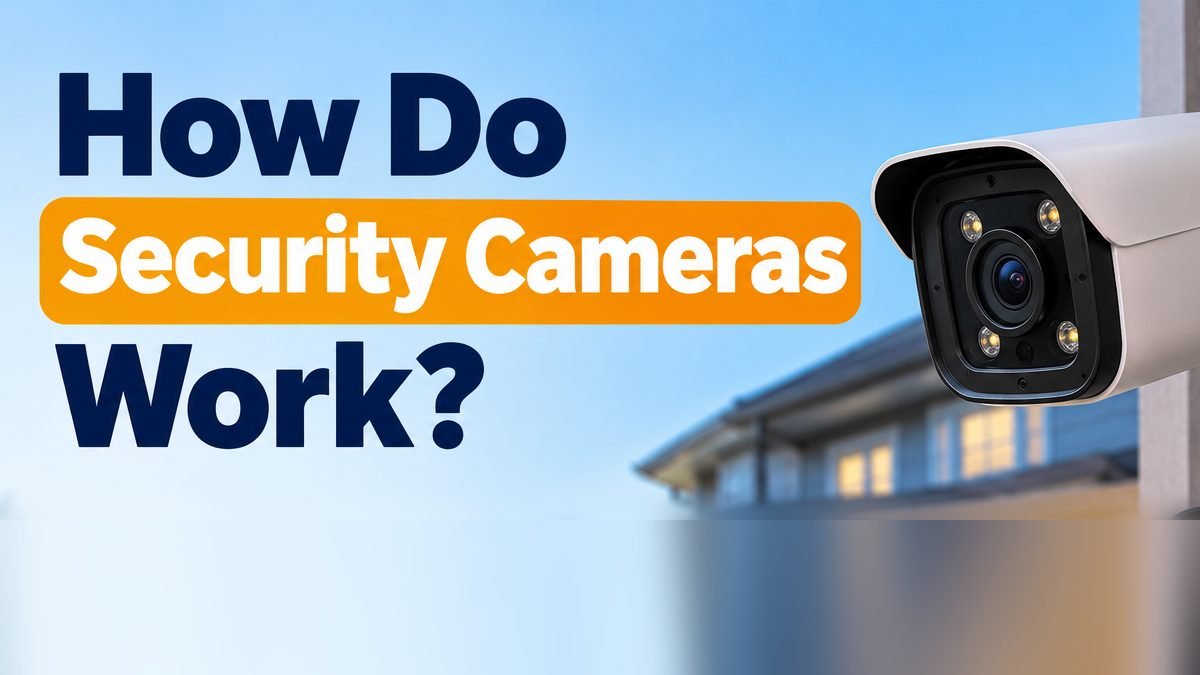
How Do Security Cameras Work?
A security camera captures light through a lens and turns it into digital video with an image sensor. Its processor handles the image and may compress it so it takes less space. The camera can then send the video to a phone, computer, network recorder, or cloud service, depending on its design.
Some cameras show live video when you open an app. Others save clips when they detect movement, while some can record all the time. A camera may need Wi-Fi or Ethernet to provide remote viewing, but certain models can save footage locally without an internet connection. Its exact features depend on the model and settings.
What Are the Main Parts of a Security Camera?
Most security cameras combine several parts to capture, process, and store video. The parts may look different from one model to another.
- Lens: Collects light and sets the view the camera can see.
- Image sensor: Turns incoming light into an electronic image.
- Processor: Handles video and may support motion or person detection.
- Power source: May be a wall adapter, Ethernet cable, rechargeable battery, or backup supply.
- Network connection: Uses Wi-Fi, Ethernet, or a separate hub when supported.
- Storage: Saves video to a memory card, recorder, built-in memory, or cloud service.
- Microphone: Records sound on models with audio recording enabled.
- Infrared LEDs: Provide light for night vision on some cameras.
What Types of Security Cameras Are Available?
Wired Security Cameras
Wired cameras connect through a cable for power, data, or both. Some use Ethernet and Power over Ethernet (PoE), while older systems may use coaxial cable and a recorder. A cable can provide a steady connection, but installation may take more work.
Wireless Security Cameras
Wireless cameras often send video over Wi-Fi. Some still plug into a wall outlet, so “wireless” may describe the data connection rather than the power supply. The camera may use local storage or a cloud service.
Battery-Powered Security Cameras
Battery-powered cameras can be placed where a power outlet is not close by. Their recording options may depend on battery level, motion activity, and power-saving settings. Some support an optional solar panel or external power source.
Indoor Security Cameras
Indoor cameras are made for rooms and covered spaces. Common features include live viewing, motion alerts, two-way audio, and privacy modes. Check whether the camera has a physical privacy shutter and how recordings are stored.
Outdoor Security Cameras
Outdoor models are built to handle weather within a stated rating. They may include night vision, spotlights, and motion zones. Placement should give a useful view while respecting the privacy of neighbors and public areas.
How Do Wireless Security Cameras Work?
A wireless camera captures video and sends it to a phone, recorder, or supported storage service. The basic process usually works like this:
- Connect the camera to its supported power source or charge its battery.
- Set it up with the manufacturer’s official app and follow the on-screen instructions.
- Connect it to a supported Wi-Fi network if the model needs Wi-Fi.
- Choose live viewing, motion-triggered recording, or continuous recording if available.
- Check that clips or live video appear in the app and that the storage settings are correct.
Wireless does not always mean cable-free. Many Wi-Fi cameras need a power adapter, while battery-powered models may sleep between events to save power.
How Do Wired Security Cameras Work?
Wired cameras carry video or network data through a physical cable. Depending on the system, the cable may also deliver power. The camera may send footage to a network video recorder (NVR), a digital video recorder (DVR), or a computer on the local network.
- PoE cameras: Use a compatible Ethernet cable and PoE switch or recorder to carry power and data.
- Analog cameras: Often send a video signal over coaxial cable to a compatible DVR. Their power may travel on a separate cable.
- Wired IP cameras: Send digital video through Ethernet and can work with compatible software or recording hardware.
A wired connection can remain available when Wi-Fi is weak, but it is not immune to power loss or cable damage. Check the recorder and network equipment as well as the camera itself.
How Do Security Cameras Connect to Wi-Fi?
A compatible Wi-Fi camera usually joins the home network through its official app. The exact process varies by model, but these steps are common:
- Install the manufacturer’s official app and sign in to your own account.
- Power on the camera and use its reset or setup procedure only as described in the manual.
- Choose the option to add a camera and follow the setup instructions.
- Select the supported Wi-Fi network and enter the correct password.
- Wait for setup to finish, then check the connection and live feed in the app.
Some cameras support only a particular Wi-Fi band, often 2.4 GHz. A model may also need a hub or Ethernet connection instead. Use the official manual when the setup fails; avoid trying to access a network or device without permission.
How Do Security Cameras Record and Store Footage?
Local Storage
Some cameras save clips to a memory card or built-in storage. Larger systems may store video on a DVR or NVR with a hard drive. Local storage can work without a cloud plan, but the camera and storage device must support the recording method.
Cloud Storage
Cloud-enabled cameras send footage over the internet to a service linked to the account. Remote access can be convenient, but availability, clip history, and fees depend on the provider and plan. A camera may show live video while cloud recording is disabled or unavailable.
Continuous Recording
Continuous recording saves video throughout a chosen period. It can use storage quickly, so many systems overwrite older footage when space runs out. Confirm that continuous recording is supported and enabled, and check whether the camera has a suitable power supply and storage capacity.
Motion-Triggered Recording
Motion-triggered recording saves clips when the camera detects activity. It can reduce storage use, but a clip may not show events outside the camera’s trigger window. Sensitivity, activity zones, battery settings, and detection features affect what gets saved.
How Do Night Vision Security Cameras Work?
Many security cameras use infrared (IR) LEDs to light a dark area. The camera’s sensor detects this light and can produce a black-and-white image even when a person cannot see the IR light. Some models use visible white lights to record color video at night.
- Infrared night vision: Often provides a black-and-white view in low light.
- Color night vision: Uses available light or a built-in spotlight on supported models.
- Built-in lights: Can improve detail, but may attract attention or affect nearby areas.
- Range and clarity: Depend on the sensor, lens, distance, weather, reflections, and light in the scene.
A faint glow around a camera does not prove that it is recording. Some infrared emitters may show a dim red glow, while others are not visible to the human eye. The user manual is a better guide to a particular model’s night mode.
How Do Motion Detection Security Cameras Work?
Motion detection software looks for changes in the camera’s view. More advanced models may use image analysis to distinguish people or vehicles from other movement. When a supported event is detected, the camera may send an alert or save a clip.
- Motion alerts: Notify the account when activity crosses a set threshold.
- Person or vehicle detection: Uses supported analysis to label certain types of activity.
- Activity zones: Let the owner focus detection on chosen areas.
- Sensitivity settings: Adjust how easily motion triggers an event.
- False alerts: May happen because of shadows, insects, rain, trees, headlights, or other changes.
Detection is not perfect. A camera might miss a small or distant subject, and a motion alert does not always mean a clip was saved. Check the event history and recording settings if an expected clip is missing.
How to Tell If a Security Camera Is On?
To understand how to tell if a security camera is on, look for more than one sign. A light or a power cable can offer a clue, but the official app and the camera’s manual usually give more useful status information.
- Power or status lights: Check the manual to learn what each light means. Some cameras have no visible light.
- Live feed in the official app: A working live feed suggests the camera is powered and reachable at that moment.
- Recent recordings: Open the event or playback history to see whether new clips are being saved.
- Power connections: An authorized owner can check the cable, adapter, battery, or power indicator.
- Online or offline status: The app may show whether the camera can currently reach its service or network.
- Model-specific indicators: Some devices show status in an app or on a recorder rather than on the camera.
There is an important difference between being powered on, being connected, and recording. A powered camera may be offline. A connected camera may have recording turned off, lack storage, or have a failed subscription. Check the exact model’s app, manual, and recording settings before drawing a conclusion.
Common Signs a Security Camera Is Recording
There is no single sign that proves every camera is recording. These indicators can help an authorized user check the camera’s current state:
- A recording icon or status message in the official app.
- A new clip in playback or event history.
- A recording schedule showing the current time is covered.
- A recorder interface showing an active channel or recording status.
- A model-specific status light whose meaning is confirmed in the manual.
A camera can remain powered on while saving no footage. For example, storage may be full or missing, a schedule may be disabled, or the account may lack the plan needed for cloud clips. Check whether the time and date are correct and whether new recordings actually appear.
Check for a Red or Green Light
Red, green, blue, or other indicator lights can mean different things on different cameras. One model may use a light for power, while another may use it for setup, a network state, night vision, or an error. Some cameras let the owner turn the indicator off.
- Look up the exact indicator pattern in the camera’s manual.
- Check whether the light is steady, blinking, or changes during setup.
- Confirm the status in the official app if the camera is part of your system.
Do not assume that green means recording or that red means recording is active. Light meanings are not universal, and an indicator alone cannot confirm that footage is being saved.
Look for a Moving Camera Lens or IR Light
Some indoor cameras can pan and tilt to change their view. A movement sound or a lens that changes direction may mean the camera is repositioning, following an allowed tracking setting, or completing a startup check. Fixed cameras do not move their lenses in this way.
- Pan-and-tilt cameras may move when the owner uses the app or an enabled tracking feature acts.
- Infrared LEDs may appear as faint red points on some models.
- Other infrared emitters do not appear visibly lit to the human eye.
Movement or infrared light does not prove that the camera is recording. A camera may move while live viewing is active, yet not save a clip. The model’s app and settings are better ways for an owner to confirm recording.
Listen for a Small Motor or Clicking Sound
Some cameras make a faint motor sound when a pan-and-tilt mechanism moves. Other models may click when switching between daylight and infrared night modes. These sounds can be normal, but they vary with the design and environment.
Many security cameras operate silently, so not hearing a sound does not mean a camera is off. A click or hum also does not prove the camera is saving footage. If a camera you own makes a new or repeated noise, check its manual and support guidance rather than opening or damaging it.
Check the Camera’s Power Source
If you own or are authorized to manage the camera, use these safe checks to review its power source:
- Check that the power cable is seated properly and that the outlet or compatible PoE source works.
- For a battery camera, view the battery level in the official app or charge it according to the manual.
- Look for the manufacturer’s normal startup indicator, if the model has one.
- Open the official app and check the camera’s online status and live feed.
- Read the manufacturer’s troubleshooting steps if the camera remains offline or does not start.
Do not open unfamiliar equipment or touch exposed wiring. If the power supply appears damaged, stop using it and get help from a qualified person or the device maker.
Use Your Phone to Detect Hidden Cameras
A phone can help with a few basic privacy checks, but it cannot reliably detect every hidden camera. Use lawful, non-destructive methods and respect other people’s property.
- Look carefully: Check your own room for unfamiliar objects that seem out of place.
- Use a flashlight: A lens may reflect light at certain angles, but many ordinary objects can reflect light too.
- Be cautious with apps: Some apps claim to detect cameras, but results vary and false alarms are possible.
- Check a network only with permission: A router list may show some connected devices, but it may not identify a camera clearly.
Wi-Fi checks can miss cameras that use Ethernet, a separate hub, cellular service, or local storage. Phone cameras also differ in their ability to see infrared light. Treat any result as a clue, not proof, and do not damage an unfamiliar device or accuse someone without evidence.
Look for Unusual Wires, Devices, or Small Holes
When checking a space where you are entitled to be, notice devices or changes that you cannot explain. Possible clues can include:
- An unfamiliar electronic device placed in an unusual position.
- A cable that does not seem to match the nearby equipment.
- A small opening aimed toward a private area.
- A device whose purpose or owner is not clear.
These signs do not prove a hidden camera is present. Small holes may be part of normal construction, and cables may serve many common devices. If you have a reasonable concern, take a photo from a safe distance when lawful, avoid touching the equipment, and ask the property manager or appropriate authority to check it.
Can a Security Camera Work Without a Light?
Yes. Some security cameras can work without a visible status light. An owner may be able to disable an indicator, the model may not have one, or infrared night vision may use light that people cannot see.
Because indicator designs differ, the absence of a light does not confirm that a camera is off. For a camera you manage, check the official app, live feed, power status, and recording history. The manual can explain which indicators exist and what they mean. Even then, live video and saved footage are separate functions, so verify both if recording matters.
How to Check If a Camera Is Connected to Wi-Fi
If you are authorized to manage the camera and network, these steps can help check its connection:
- Open the camera’s official app and view its online or offline status.
- Try the live feed and note whether the app reports a connection error.
- Check the camera’s network settings using the app or manual.
- Review the router’s device list if you have permission; the device name may not clearly identify the camera.
- If it remains offline, follow the manufacturer’s reconnect procedure and check the router or hub.
A camera that is offline from Wi-Fi may still have power or save video locally. Some models use Ethernet or a separate hub instead of Wi-Fi. A router list alone cannot prove that a camera is working or recording.
What to Do If You Find a Hidden Camera
If you suspect a camera is placed where privacy is expected, stay calm and put your safety first. Do not assume that an unfamiliar device is a camera until there is reliable evidence.
- Move to a private and safe place if you feel uncomfortable.
- Avoid touching, disconnecting, or damaging unfamiliar equipment.
- If it is safe and lawful, record what you observed with a photo or written note.
- In rented accommodation, contact the property manager or booking provider through an official channel.
- If you believe surveillance may be unlawful, report the concern to the appropriate local authorities and follow their advice.
Rules about cameras differ by location, property type, and whether a space is private. Avoid posting someone’s identity or accusations online before the facts are checked. Keep any evidence safe and seek help from a qualified local source.
How to Protect Your Privacy at Home or Hotel
A few practical habits can help protect your privacy when using cameras or staying in a new place.
- Use a strong, unique password for your camera account and Wi-Fi network.
- Turn on two-factor authentication when the service supports it.
- Install firmware and app updates from official sources.
- Review privacy modes, microphone access, recording schedules, and account-sharing permissions.
- Place cameras you own where they protect your property without unnecessarily recording private spaces.
- Remove access for former household members or devices you no longer trust.
- Use official reporting channels if you have a specific concern in a hotel or rental property.
Before buying or installing a camera, learn where footage is stored and who can view it. A secure account and sensible placement matter as much as image quality.
Can Security Cameras Work Without the Internet?
Yes. Some cameras can record without internet access if they have supported local storage or connect to a local recorder. Traditional closed-circuit systems can send video to a screen or recorder within the property without using the public internet.
- A camera may save clips to a memory card or built-in storage.
- A wired system may record to a local DVR or NVR.
- A local network may let devices view footage inside the home, depending on the setup.
Without internet access, remote viewing, cloud backup, and some app alerts may stop working. The exact behavior depends on the camera and recorder, so check whether local recording is supported and enabled before relying on it.
Can Security Cameras Record Without Wi-Fi?
Yes, some security cameras can record without Wi-Fi. They may use another connection or save video directly to local storage. The available options depend on the model.
- Memory cards: A compatible camera can save clips locally if this feature is supported and enabled.
- Local recorders: Wired cameras may send video to a DVR or NVR.
- Ethernet: Some IP cameras use a wired network instead of Wi-Fi.
- Offline recording: Certain battery or standalone models can record locally, but others require an active network for some features.
Recording without Wi-Fi does not necessarily mean every function works. Remote access and cloud features may be unavailable, and some cameras need a hub or local network. Read the official product instructions before assuming an offline camera will keep recording.
Do Security Cameras Work During a Power Outage?
A security camera may continue working during a power outage if it has a charged battery or a working backup supply. A camera that depends on a wall adapter will usually stop when its power source fails. The router and recorder may also need backup power for the whole system to work.
- Rechargeable batteries: Keep a battery camera running while enough charge remains.
- External battery packs: Work only with models that support the required power input.
- UPS devices: Can power compatible cameras, routers, and recorders for a limited time.
- Backup power: Check that every necessary part of the system is covered, not just the camera.
Runtime depends on battery size, temperature, recording settings, and the devices connected. Check the manufacturer’s guidance and test a backup system safely before an outage happens.
Do Security Cameras Need a Subscription?
Not every security camera needs a subscription. Some offer local recording and basic live viewing without a monthly fee, while others charge for cloud storage or advanced features. The details vary by model and service.
- Local storage: May avoid cloud fees when the camera supports memory cards or a local recorder.
- Free basic features: May include live viewing or limited motion alerts, depending on the service.
- Paid cloud storage: May add off-site clips or longer recording history.
- Advanced alerts: Person recognition or other smart features may be plan-dependent.
Before choosing a camera, read its current plan terms. Check what happens to saved clips and alerts if a trial ends or a subscription is cancelled. A camera’s ability to turn on is not the same as access to every recording feature.
How to Choose the Right Security Camera for Your Home
The right camera should match the area you want to monitor and the way you plan to view and save footage. Compare the following points before choosing a model.
- Video quality: Choose enough detail for the distance and area.
- Night vision: Check whether infrared or color night video suits the location.
- Power source: Consider a plug-in cable, PoE, or battery-powered design.
- Storage: Compare memory card, local recorder, built-in, and cloud options.
- Wi-Fi support: Make sure the model works with your network, or choose Ethernet where useful.
- Motion alerts: Look for settings that help reduce unwanted notifications.
- Weather resistance: For outdoor use, check the stated rating and installation needs.
- Privacy controls: Review account security, privacy modes, and microphone options.
- Subscription costs: Check any recurring fee and which features depend on it.
- Installation: Make sure the placement, cable route, and mounting method are practical and lawful.
Finally, read the manual and current service terms before purchase. Choose a system you can keep updated and check regularly, rather than relying on a status light alone to tell you whether it is working. For more help comparing indoor options, read our guide to choosing an indoor security camera.
Frequently Asked Questions (FAQs)
How do security cameras work for beginners?
A security camera captures video through a lens and image sensor. It then processes the video and either sends it to another device or saves it to supported storage. Depending on the model, you may view live video, receive motion alerts, or play back recorded clips.
How to tell if a home security camera is on?
To check how to tell if a home security camera is on, use its official app to view power or online status and try the live feed. Check recent recordings as well. Lights can help, but some cameras have no visible indicators, and a live feed does not always mean footage is being saved.
How to tell if a security camera is actually on?
How to tell if a security camera is actually on depends on the model. For a camera you own or are allowed to manage, check its power source, official app, connection state, and recent clips. A colored light or movement alone cannot confirm that it is recording.
Can a security camera work without a light?
Yes. Some cameras have no visible status light, and some let the owner disable the indicator. Infrared light may also be invisible to people. Check the model’s app and manual rather than using the absence of a light as proof that it is off.
Can a security camera record without Wi-Fi?
Some cameras can save video to a memory card, built-in storage, or a local recorder without Wi-Fi. Other models need a network or hub for recording. Check the exact model’s offline recording support and confirm that local storage is set up.
Do security cameras work in the dark?
Many cameras work in the dark with infrared night vision or a built-in white light. Image quality depends on the camera, distance, lighting, and surroundings. Not every camera has night vision, so review its specifications and settings.
No. Phone apps and flashlight checks may reveal clues, but they can miss cameras and produce false alarms. A camera may use Ethernet, cellular service, or local storage. Use lawful, non-destructive privacy checks and contact the appropriate authority if you have a specific concern.
How long do security cameras keep recordings?
Retention depends on storage capacity, video quality, recording mode, activity level, and the service plan. A system that records continuously often uses space faster than one that saves short motion clips. Check the app’s retention settings and whether older footage is overwritten automatically.
Final Thoughts
Security cameras capture video, process it, and send or save it through the features their system supports. The power source, network connection, storage, and recording settings all affect what the camera can do.
When checking whether a camera is on, do not rely on lights, sounds, or movement alone. For a camera you own or are authorized to manage, use its official app, manual, and playback settings. If you have a privacy concern about an unfamiliar device, avoid damaging it and seek help through suitable, lawful channels.