A neighbor’s security camera can make you feel watched. Maybe it points toward your yard. Maybe it faces a window. Maybe your phone keeps showing camera alerts you never asked for.
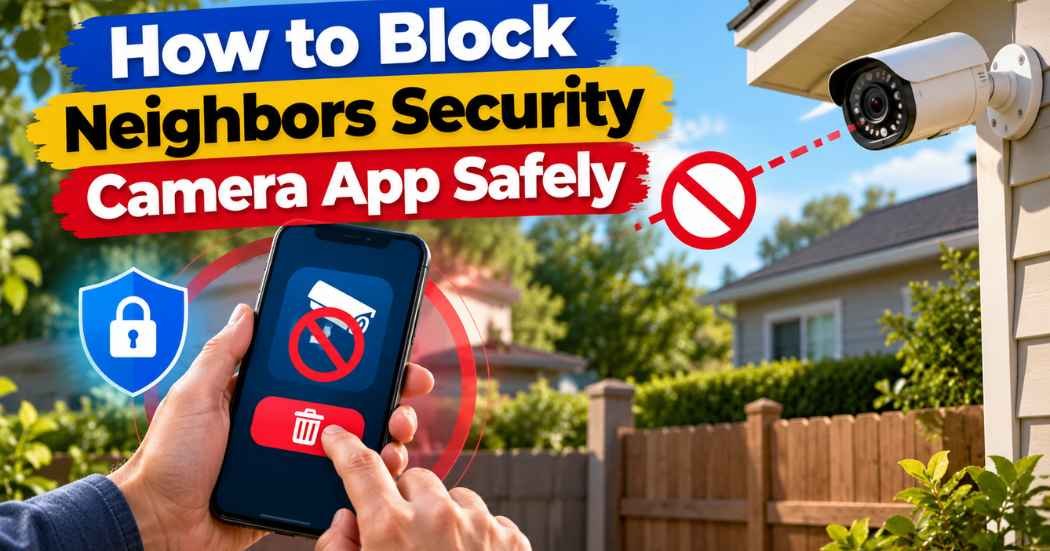
Many people search for how to block neighbors security camera app tools. The right fix depends on the problem. Is it where the camera points? Is it app alerts on your phone? Or do you think something odd is happening on your own device?
This guide covers all three. You will learn what you can do, what you cannot do, and how to stay on the right side of the law.
How to Block Neighbors Security Camera App: Is It Possible?
Short answer: no, not from your phone.
There is a big difference between two things:
- Blocking an app on your own phone. You can do this. It takes a few taps.
- Turning off a camera that belongs to someone else. You cannot do this with Android settings.
A neighbor’s camera is their device. It runs on their account and their Wi-Fi. No app on your phone can lawfully switch it off. Any app that claims it can should be treated with great care.
What you can do is protect your privacy. You can also control which apps and alerts reach your own phone.
How to Protect Your Privacy
Start with calm, simple steps. Most camera concerns can be solved without a fight.
Check What the Camera Can See
Look at where the camera points. Ask yourself:
- Does it face the street or a shared path?
- Does it point at your yard, door, or windows?
- Does it seem to cover private spaces, like a bedroom or bathroom window?
Cameras that watch a front door are common. Cameras aimed into private spaces are a bigger concern.
Write Down Your Concerns
Keep a short record. Note the date, the time, and what you saw. Take photos only from places where you are legally allowed to stand, such as your own property. Do not trespass to get a better shot.
Clear notes help if you need to talk to a landlord, a homeowners association, or local officials later.
Talk to Your Neighbor Politely
A friendly chat often works best. Many people do not know their camera covers your space.
Try something like this: “Hi, I noticed your camera might see into my backyard. Could we look at the angle together?”
Many neighbors will gladly adjust the angle or add a privacy zone in their camera app. A privacy zone is a spot the camera does not record.
Add Simple Barriers
You can protect your space yourself. Some easy ideas:
- Curtains or blinds on windows
- Privacy film on glass
- A fence, screen, or tall plants
- A patio shade or trellis
These steps are low cost and do not need anyone’s permission.
Ask for Help When Needed
If talking does not work, think about other options:
- A landlord, if you rent
- A homeowners association, if you have one
- Your local police non-emergency line or city office
Camera and privacy laws are different in each state and city. Rules can also depend on what the camera records, such as video or sound. This article is not legal advice. If the problem is serious, a local attorney can explain the rules where you live.
How to Block or Restrict an App on Your Own Android Phone
Maybe your problem is not the camera itself. Maybe it is an app on your phone. If you are looking for how to block neighbors security camera app android steps, these are the tools that really work.
They control Android app permissions and apps on your own device. They do not turn off a neighbor’s camera.
1. Review Your Apps
- Open Settings.
- Tap Apps (some phones say Apps & notifications).
- Scroll through the list.
- Look for any app you do not know or no longer need.
2. Uninstall an App You Do Not Want
- Open Settings, then Apps.
- Tap the app.
- Tap Uninstall.
If you do not see Uninstall, the app may be built into your phone. In that case, tap Disable if it is offered.
3. Check App Permissions
Apps ask for access to things like your camera, microphone, and location. You can change this at any time.
- Open Settings.
- Tap Security & privacy, then Privacy, then Permission manager. (Menu names vary by phone.)
- Tap Camera, Microphone, or Location.
- Set unwanted apps to Don’t allow.
4. Turn Off Unwanted Notifications
- Open Settings, then Notifications.
- Tap App notifications.
- Find the app.
- Switch its alerts off.
5. Use the Privacy Dashboard
Many newer Android phones have a Privacy Dashboard. It shows which apps used your camera, microphone, or location in the past day.
You can usually find it under Settings > Security & privacy > Privacy > Privacy dashboard. If you do not see it, your phone may not have this feature yet. Your phone privacy settings may use a different name.
6. Check Google Play Protect and Update
- Open the Google Play Store.
- Tap your profile picture.
- Tap Play Protect, then Scan.
- Go to Settings > System > Software update and install any update.
Updates fix security problems. They also keep your privacy tools current.
Remember: these steps control apps and permissions on your own phone. They cannot disable a neighbor’s camera.
What If You Think Someone Is Accessing Your Phone?
Seeing a neighbor’s camera does not mean your phone was hacked. Most of the time, the two are not connected.
Still, if your phone acts strangely, take a few safe steps:
- Look for unfamiliar apps. Check your app list and remove anything you did not install.
- Change your passwords. Use a device you trust, such as a family member’s phone or a home computer. Start with your Google account and email.
- Turn on two-step verification. This adds a second check, like a code, when you sign in.
- Update Android. Go to Settings > System > Software update.
- Get help if you need it. A phone carrier store, a trusted repair shop, or a tech-savvy friend can look at your phone. If you think a crime is happening, contact local police.
What Not to Do
It can be tempting to take matters into your own hands. Please do not. These actions can put you at risk:
- Hacking into a camera or its app
- Jamming Wi-Fi or other wireless signals
- Logging into someone else’s account
- Breaking, covering, or moving a camera that is not yours
- Messing with a neighbor’s network or router
These acts can be unsafe. They can also be illegal, and they can turn a small problem into a big one. Stick to calm, lawful steps.
Frequently Asked Questions
1. Can I block my neighbor’s security camera from my Android phone?
No. Your phone controls your own apps and settings. It cannot turn off a camera owned by someone else.
2. Can an app disable a nearby security camera?
No lawful app can do this. Apps that promise to do so may be scams or may carry harmful software. Avoid them.
3. How can I stop an unwanted app from using my camera?
Open Settings, go to the Permission manager, tap Camera, and set the app to Don’t allow. You can also uninstall the app.
4. How do I check camera permissions on Android?
Go to Settings > Security & privacy > Privacy > Permission manager > Camera. You will see which apps can use your camera. The Privacy Dashboard shows recent use. Menu names can vary by phone.
5. What should I do if a neighbor’s camera points into my private space?
Write down what you see, with dates. Talk to your neighbor kindly. Add blinds, screens, or plants. If that fails, contact your landlord, homeowners association, or local authorities. Local laws vary.
6. Can I legally ask a neighbor to change a camera angle?
Yes, you can ask. Asking politely is always allowed. Whether a neighbor must change it depends on local laws and the facts. Many neighbors agree when asked kindly.
Conclusion
You cannot turn off a neighbor’s camera from your phone, and you should not try. But you still have good options.
On your own phone, you can remove apps, limit permissions, and mute alerts. For a camera you do not like, you can document the issue, talk with your neighbor, add privacy barriers, and ask for help if needed.
Calm, lawful steps protect your camera privacy and keep peace on your street.